SharePoint storage and existing ticket lists
Microsoft sign-in, directory synchronization, ticket storage, and an existing-list import are separate choices. Connecting Microsoft 365 does not move any ticket or attachment. You may keep Empeiro storage and import a SharePoint list, or choose customer SharePoint storage for an empty help desk and import into that destination. Existing source lists are always read only.
Before you start
- Complete Connecting Microsoft 365 in the intended customer organization. Confirm its directory connection is green. Only an organization administrator sees these settings; management accounts and ordinary agents do not configure customer storage.
- In SharePoint, create or choose a site you control. This version selects an existing site; it does not create a site collection. For customer storage, have a document library ready too.
- Have a tenant administrator approve the SharePoint access described below. Directory permissions alone cannot read a SharePoint list. Do not grant mailbox permissions for any of these features.
- For source imports, confirm the mapped records may be accessible under Empeiro's requester, agent and organization rules. Sources requiring narrower item-by-item SharePoint permissions are unsupported. An app-only token does not represent the employee reading an individual ticket.
- Keep an independent customer-controlled backup/export. Empeiro's server backups do not back up your SharePoint lists or document library. Use your Microsoft 365 retention and recovery policy.
Choose the permissions for your use
In the same customer-owned Entra registration, open API permissions → Add a permission → Microsoft Graph → Application permissions. Add only the permissions for the chosen operations and grant administrator consent again after changing the list.
| Permission or access | Enables | When it is needed |
|---|---|---|
| Sites.Selected application permission plus a separate site grant | Access to explicitly authorized sites | The restricted-site configuration. Consent alone grants no site access. |
| A read grant on the source site | Read its lists, columns and mapped ticket fields | Existing-list import. The source connector never creates, patches or deletes a source item. |
| A sufficiently privileged destination site grant, such as fullcontrol | Manage the dedicated lists and their columns as well as ticket/file writes | Restricted-site provisioning. Have your Microsoft administrator review this authority. |
| Sites.Read.All application permission | Search for sites and read sites tenant-wide | Optional Find sites. It is broader than a selected-site grant. Without it, use Authorized site ID → Open site. |
| Sites.Manage.All application permission | Create and manage lists across the tenant | An alternative for provisioning when your administrator authorizes tenant-wide list management. This is broader than selected-site access. |
| Sites.ReadWrite.All application permission | Read/write site content across the tenant | A broader alternative listed by Microsoft's relevant list/file endpoints. Avoid granting tenant-wide writes solely to import an existing list. |
| Sites.FullControl.All in a separate administrator tool | Grant application access to a site | Used by the administrator making the explicit site grant. It is not a required standing permission for Empeiro's customer app. |
Microsoft documents the distinction in Selected permissions, Create site permission, Create a list, and Site search. If using tenant-wide list management, separately ensure the file endpoints have the required write access; a successful directory test is not a storage permission test.
Have your Microsoft administrator authorize a selected site
This step is done in Microsoft, outside Empeiro. It changes the application's permission to the chosen site; it does not edit tickets. Use an administrator-controlled Graph client with the documented Sites.FullControl.All authority and an appropriately privileged administrator. Do not paste administrator access tokens or client secrets into Empeiro tickets.
Identify the site's Graph ID with the administrator's Graph client. For example, for a site the administrator is authorized to read,
GET /sites/{hostname}:/sites/{site-name}returns itsid. This compound ID is different from the browser address. Use your own hostname/site.Grant the customer app access by its Application (client) ID:
POST https://graph.microsoft.com/v1.0/sites/{site-id}/permissions
Content-Type: application/json

{
  "roles": ["read"],
  "grantedToIdentities": [{
    "application": {"id": "YOUR-CUSTOMER-APPLICATION-ID", "displayName": "Empeiro"}
  }]
}
For a source-only site, use
read. For a separate dedicated destination site that Empeiro must provision, have the administrator assign the reviewed management role, such asfullcontrol. Do not assume a source site's read grant permits creating destination lists.Retain the resulting permission ID in your organization's integration records. It identifies the grant your administrator can later review/revoke. Copy the site ID into Empeiro's Authorized site ID, select Open site, and check that its lists appear.
If source and destination share a site, the credential can have write authority to that site. Empeiro's source code still performs only GET requests against an imported source list; this is an application guarantee, not a claim that the credential itself has only read permission.
Find or open a site in Empeiro
- Open Microsoft 365 → Ticket storage and SharePoint sources.
- If tenant-wide discovery is authorized, enter Site search and select Find sites. Otherwise paste the explicitly authorized site's ID and select Open site.
- Choose the site in Site. Empeiro reads its available lists and document libraries.
- Read any error before continuing. A green directory light proves directory access only.
Enable customer-owned storage for an empty help desk
- Choose the destination site as above.
- Expand Use this site for new Empeiro ticket storage.
- Select the Attachment document library belonging to that site.
- Read and tick the confirmation about creating dedicated lists and an attachment folder.
- Select Enable SharePoint storage and wait for completion. Empeiro creates dedicated Tickets, Messages, Rules and How-tos lists in an organization-specific namespace. It does not adopt or change any existing ticket list. It also creates its own attachment folder in your library.
- Expect Current ticket storage: Customer SharePoint, the readiness message, and Test storage. Reload Empeiro as instructed. Ticket records are now read and written through Graph; no complete local ticket mirror is maintained. Empeiro people/access policies stay the same.
- Use Test storage to confirm lists and the folder can be read. This is a read test, not proof that a subsequent write will succeed. When you are ready for a real acceptance test, create a ticket, assign it, reply, complete it with a resolution, attach a picture and retrieve it again. Verify the actual saved records/files in your own destination site.
Activation refuses a help desk that already contains tickets, messages, rules, how-tos or attachments. It does not silently migrate or delete those records. Keep its current storage and use an import source, or arrange a separately reviewed data migration. Switching an active SharePoint help desk back to native storage is not available in this release.
If provisioning fails partway through, no storage switch is committed. Empty dedicated lists or the folder may remain in your site. Correct the permission/schema error and retry; Empeiro finds its dedicated lists rather than making a second set. It never changes a conflicting column.
Map an existing ticket list
- Under Connect an existing ticket list, choose Source list. The dropdown shows the selected site's actual lists; Source list never becomes the live write destination.
- Match each Empeiro field to the actual source column. Column labels show their discovered type. Issue description and Status are required; other fields may be Do not import.
- Map Title, Resolution, IT definition, Requester, Assigned to, Reported date, Completed date, Priority, System and Department where present.
- Use Map status values and the other displayed value mappings to translate source choices.
For example, map
OpentoNewandDonetoCompleted. Do not map an unverified or merely closed request to Completed if its resolution was not confirmed. Supported statuses are New, In Progress, Waiting on Requester and Completed. Priorities are Low, Normal, High and Urgent. - Person columns must contain one person. They are resolved through the source site's user information and matched to a person already in this organization's Empeiro directory by email. A text column containing an email can also be mapped. Missing matches are reported and omitted; Empeiro does not invent an employee or invite an unknown person during ticket import. Original source person values/lookup references are retained in encrypted correlation metadata and the private reference download, so an unmatched identity is not silently lost.
- Date columns preserve the mapped original dates. Text dates accept the same supported ISO/US date forms as the import parser; dates without a timezone use UTC here. Map a proper date column when possible. Invalid dates and unsupported choices are flagged rather than coerced.
- Tick the access-rules confirmation only after reviewing the source's audience.
- Choose whether to allow the source in AI historical search and knowledge drafts. Off is the default. This permission is additional to the organization's provider/data-sharing consent.
- Choose Synchronize this source hourly for automatic runs, or leave it off for manual runs.
- Select Preview mapped tickets. Read the total and flagged count and the first 20 mapped records. The preview reads every page for its counts but writes no ticket and calls no AI. Correct mappings and preview again after changes. With text choice columns, preview first exposes sample values so that you can map them.
- Select Save read-only source. This saves configuration; it does not import records yet.
- Find the saved source card and select Import / sync. Keep the page open while the status indicates work. Read the returned counts and Records requiring attention.
The first run includes completed and unresolved records. It preserves a stable source/item reference, original source created/modified timestamps in the integration metadata, and mapped ticket dates, content and relationships. It does not rewrite SharePoint's system Created/Modified fields on the destination to pretend the destination item existed earlier.
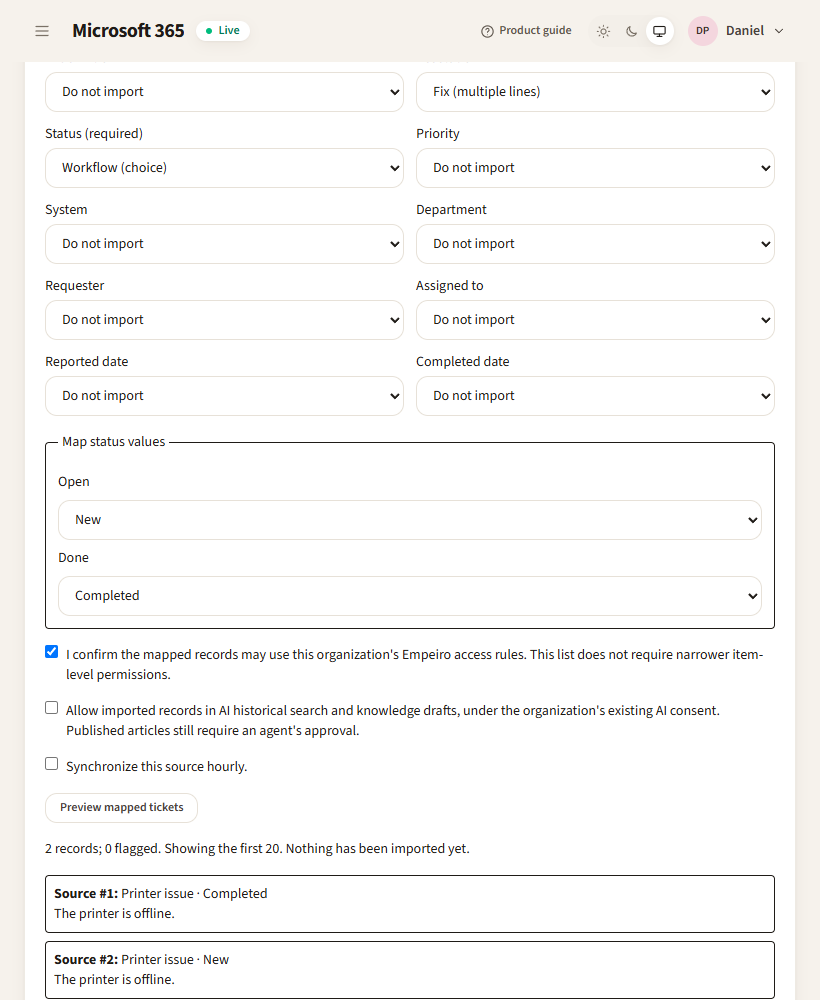
The screenshot uses a synthetic organization for documentation. Select your own site, columns and values; these example names are not preset customer mappings.
Understand synchronization results
| Result | What happened | Administrator action |
|---|---|---|
| created | A previously unseen source ID became a destination ticket | Check the first run's requester/date/status mapping. |
| updated | Mapped source data changed; the imported copy's mapped fields still matched the previous import | Review changed resolutions and any withdrawn knowledge article. |
| unchanged | The source values and source modification marker did not change | No duplicate ticket is created. |
| conflicts | Both source and mapped destination data changed | Local changes are preserved. Compare the two records before choosing which version to keep. |
| failed | A row has an invalid date/choice or a Graph operation failed | Read the listed source ID and reason, correct it, then retry. Other successful rows remain imported. |
| missing | A previously imported source record was absent from a complete successful source read | The copy is retained, flagged missing and excluded from AI knowledge; no ticket is deleted. |
Source access failure does not mean every ticket was deleted. Existing copies stay; source references become inaccessible and derived published advice is withdrawn for review. An hourly run retries an enabled source after the interval. The source card records its last attempt and message; expand its last-run attention report to inspect source IDs and reasons after reloading. Each run replaces that saved report. Activity records who ran it. Normal repeat syncs are safe to retry after an interrupted request. Do not edit identifiers to work around a duplicate/conflict report.
This release reads complete pages each run and compares hashes. It does not use Microsoft's directory delta or list-item delta tokens. Large lists therefore take longer and use more API requests. Empeiro honors Graph retry delays and stops after bounded retries; a retryable failure is reported rather than called success.
Historical resolutions and knowledge
When AI use is allowed for the source, eligible imported Completed tickets with Resolution Details enter the existing Knowledge writer path. Configure that assistant and its Chat/Decision providers first. The writer evaluates fixes, scrubs personal details, groups similar resolutions and proposes drafts linked to ticket IDs. An agent must approve a draft before it is a published help article. Merely importing a closed record does not publish advice. Semantic search additionally needs the Index job; text search remains available without it.
If a synchronized source resolution changes, goes missing, conflicts or becomes inaccessible, linked published articles return to draft, pending proposals are rejected, and the ticket's old search vector is removed. An agent must compare and update the existing article and publish it again. Automatic rewriting of an approved article is not implemented. Existing source links are retained so the writer does not create a duplicate article from the same historical ticket.
Maintenance and offboarding
- Credential renewal: replace only the secret on Change details, then Save and test. Keep tenant/application IDs stable while SharePoint storage depends on them. Test storage afterward and check the next source run. Renewing a secret does not alter source tickets.
- Change mappings: open the source site/list again, choose the new mappings, preview and save. The same organization/site/list updates its saved source configuration. Review changed fields before the next sync. Source lists themselves remain unchanged.
- Stop sync and AI use: selects neither a source delete nor a ticket delete. It disables hourly sync and AI use, retains imported copies, and withdraws derived knowledge for review. Manual Import / sync is still an explicit administrator action. To re-enable, save the source again with the desired settings.
- Disconnect Microsoft 365: blocked while it is the active ticket store. Preserve the registration/site permissions until a reviewed migration or offboarding export is complete. A native-storage organization can disconnect as described in the Microsoft 365 guide.
- Before removing an organization: use Download storage and people references for offboarding, save the ticket CSV export if needed, and export published knowledge and any other locally held operational data you need. The reference download maps Empeiro person lookup numbers and list fields, including source identifiers. Keep it private.
- Ownership: organization removal does not delete SharePoint lists or document-library files. Empeiro's local configuration, directory and knowledge records are removed. The customer must retain the reference download to interpret local-person lookup numbers after account removal. Revoke the Microsoft app/site grants only after confirming the customer's retained exports.
Messages and corrective actions
| Actual message or prefix | Verified cause | Corrective action |
|---|---|---|
| Connect and test this organization's Microsoft 365 first. | No currently connected customer registration | Repair the directory connection in this organization first. |
| Microsoft refused access… | Graph answered 401/403 | Check the exact app, consent and selected-site grant, not only the directory permissions. |
| Choose a document library belonging to this site. | The submitted library is not in the site's discovered drives | Reopen the site and choose one of its libraries. |
| This help desk already contains records. Automatic storage migration is not available… | Native lists contain at least one item | Keep native storage, or arrange reviewed migration. No records were moved. |
| This organization already has attachments… | Native/R2 attachments predate activation | Retain the original store until those files are safely migrated. |
| The dedicated … list has an incompatible … column. No existing columns were changed. | A dedicated-name list exists with an unexpected schema | Have an administrator inspect that dedicated list; do not modify a live source to match it. |
| Map the issue description and status before previewing or importing. | Required mapping absent | Map both required fields and preview again. |
| Map … to a compatible single-value column… | Source column type is unsupported or is multi-person | Choose a compatible column; this version does not flatten multi-person/taxonomy data. |
| The imported ticket was edited in Empeiro; changes were preserved… | A source change would overwrite a changed mapped destination field | Compare both records. Preserve the local version or expand Resolve changed-source conflicts, tick its reviewed-replacement confirmation, and select Replace conflicts from source only if the source should win. |
| Source could not be read; existing imports were preserved… | Full source read failed; appended reason identifies Graph/validation failure | Restore access or mapping, then sync. Copies remain and source-derived knowledge is withheld. |
| Microsoft is limiting requests right now… | 429/503 continued through retry allowance | Wait, reduce competing workloads and retry. Do not repeatedly click Import / sync. |
| Microsoft returned a download address outside the configured SharePoint site. | Download redirect used a different host | No bearer token was forwarded. Ask the operator to review the legitimate Microsoft download host; no wildcard bypass is provided. |
| This help desk uses customer-owned SharePoint storage… | Disconnect would remove live storage credentials | Complete offboarding/migration first; retain credentials meanwhile. |
Current limits
No automatic migration of an occupied native store, new site-collection creation, item-level source permission replication, source list attachment import, or arbitrary file upload is provided. Current uploads are PNG/JPEG/GIF/WebP pictures up to 10 MB stored in the chosen document library. Knowledge articles, minimized vectors, assets, directory, billing and configuration still have documented local persistence. This is not a claim that all customer information lives in Microsoft. Live permission/tenant acceptance remains the customer's deployment step; synthetic tests cannot prove a real organization's consent or SharePoint schema.