Connecting Microsoft 365
This page is for an organization's administrators. Connecting lets Empeiro bring in everyone in your Microsoft 365 directory with their name, job title, department and photo, keep them up to date, decide who answers tickets from a security group, and let people sign in with their work account. It reads the directory only. It never has access to anyone's email, and your tickets stay in Empeiro.
You connect with an app registration you make in your own Microsoft 365. Empeiro has no app of its own in your tenant and never registers anything there; you create it, you can see everything it may do, and you can delete it at any time.
Before you start
- You need a Global Administrator (or Privileged Role Administrator) of your Microsoft 365 to create the app registration and grant its permissions. Nothing else works without that.
- Hybrid organizations (Active Directory in the office, synced to Microsoft 365) connect the same way. Empeiro reads the copy that your AD sync puts in Microsoft 365, so a change made in AD appears after your next AD sync cycle and then Empeiro's next sync.
- Allow about 10 minutes for the whole thing.
Step 1: create the app registration in Microsoft
This gives Empeiro an identity in your Microsoft 365 and tells Microsoft what it may read.
Sign in to the Microsoft Entra admin center at
https://entra.microsoft.comas a Global Administrator.In the left menu go to Entra ID → App registrations and click New registration. (In older menus the path is Identity → Applications → App registrations.)
Fill in the form:
- Name:
Empeiro - Supported account types: Single tenant only (older wording: Accounts in this organizational directory only).
- Redirect URI: leave empty for now. (You add one later only if you want people to sign in with Microsoft; see Sign in with a work account.)
- Click Register.
- Name:
You land on the app's Overview page. Two values here go into Empeiro; copy them somewhere safe:
- Application (client) ID, a value like
aaaaaaaa-bbbb-cccc-dddd-eeeeeeeeeeee - Directory (tenant) ID, the same shape
- Application (client) ID, a value like
In the left menu of the app, open API permissions. The list already shows one row, User.Read of type Delegated: Microsoft adds that to every new registration. Leave it there. Now click Add a permission, choose Microsoft Graph, then the Application permissions box (the one on the right, not Delegated). In the search box find and tick:
- User.Read.All: reads people's profiles and photos.
- GroupMember.Read.All: reads which security groups people are in, so you can choose a group whose members are agents. Harmless if you mark agents by hand.
- Optionally Organization.Read.All, which lets Empeiro show your organization's name and tell a meeting room's license from a person's. Not required.
Click Add permissions.
Still on API permissions, click Grant admin consent for (your organization) and confirm. The Status column should show a green tick and Granted for … on every row, the delegated one included. Without this step Empeiro is refused.
Open Certificates & secrets, then Client secrets → New client secret. Give it a description such as
Empeiroand an expiry. Microsoft recommends 12 months or less; 24 months is the maximum. Click Add.Copy the secret's Value immediately. It is shown only once. Do not copy the Secret ID beside it; that is a different thing and will not work.
Step 2: enter the details in Empeiro
- In Empeiro, open Microsoft 365 in the menu on the left (administrators only).
- Paste the three values:
- Directory (tenant) ID → from the Overview page
- Application (client) ID → from the Overview page
- Client secret → the Value from step 8
- Click Save and test.
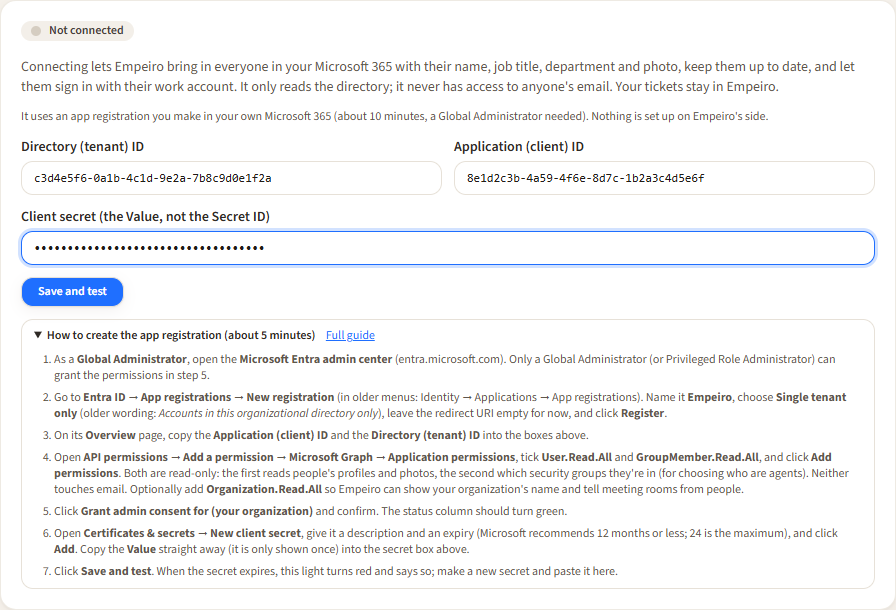
The steps sit right under the form; Full guide opens this page.
Empeiro stores the secret encrypted and never shows it again, only its last four characters. The form checks the two IDs look right before sending anything, then signs in to Microsoft with your registration and reads one person to prove the permissions work.
If the light turns green ("Test passed"), the first sync starts automatically. If it turns red, the message says what is wrong in plain words; see the table below, fix it, and the form stays open for corrections.
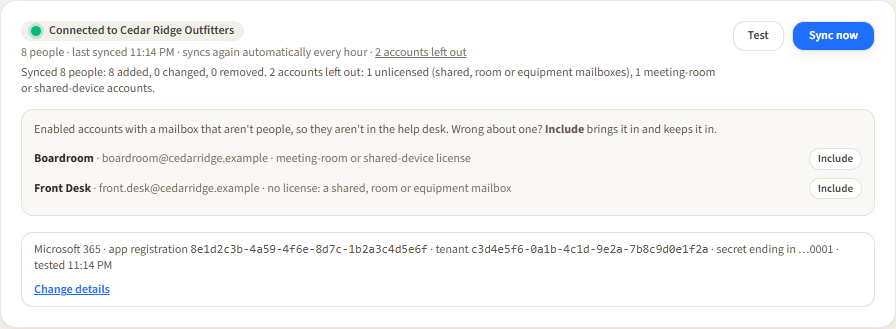
Connected: everything about the connection on one page.
What syncing does
- Sync now reads the whole directory. It also runs automatically every hour.
- Who is included: enabled member accounts with an email address. They come in as requesters, until you make them agents (below).
- What is read: name, email, job title, department, photo, and security-group membership (including membership through nested groups). Nothing else, and nothing from anyone's mailbox.
- Who is left out: guests, disabled accounts and accounts with no email address are never read. Of the enabled accounts with a mailbox, two kinds are not people and are kept out too: accounts with no license (shared, room and equipment mailboxes need none; every person's mailbox does) and accounts whose only license is a Teams Rooms or shared-device license. They are listed under N accounts left out, each with an Include button in case the rule was wrong about one (a front-desk login, say). The other way round, Leave out beside a person keeps out an account the rule took for a person. Both decisions hold across every later sync.
- Telling a meeting room's license from a person's needs Organization.Read.All. Without it, Empeiro only knows "licensed or not": shared mailboxes are still left out, but a licensed meeting room comes in (use Leave out on it).
- Leavers: anyone the directory no longer lists leaves Empeiro on the next sync. Their tickets stay. Someone you also invited by name keeps their Empeiro account.
- Photos come from Microsoft 365. People whose mailbox is still on an on-premises Exchange server may have no photo; their initials show instead.
Every save, test and sync is written to the Recent activity list at the bottom of the page, with who did it; the whole log is Activity.
Who answers tickets
Beside the sync, Who answers tickets chooses a security group whose members are agents (an IT team, say), with anyone you mark as Agent by hand in the people list. Everyone else from the directory is a requester. Change the group's members in Microsoft 365 and Empeiro follows on the next sync. "Only people marked by hand" uses no group at all.
Groups that aren't security groups (a Microsoft 365 group for a team's mail, say) aren't offered.
Who can sign in
Connecting doesn't open Empeiro to your whole staff. Until you say so, only the people you list can sign in with their work account, and you are always on the list. People invited by name on Accounts can always sign in.
- Only these people: tick Can sign in beside each person, then Save who can sign in.
- Everyone in the directory: everyone the sync brought in.
Taking someone off the list ends their sign-ins at once.
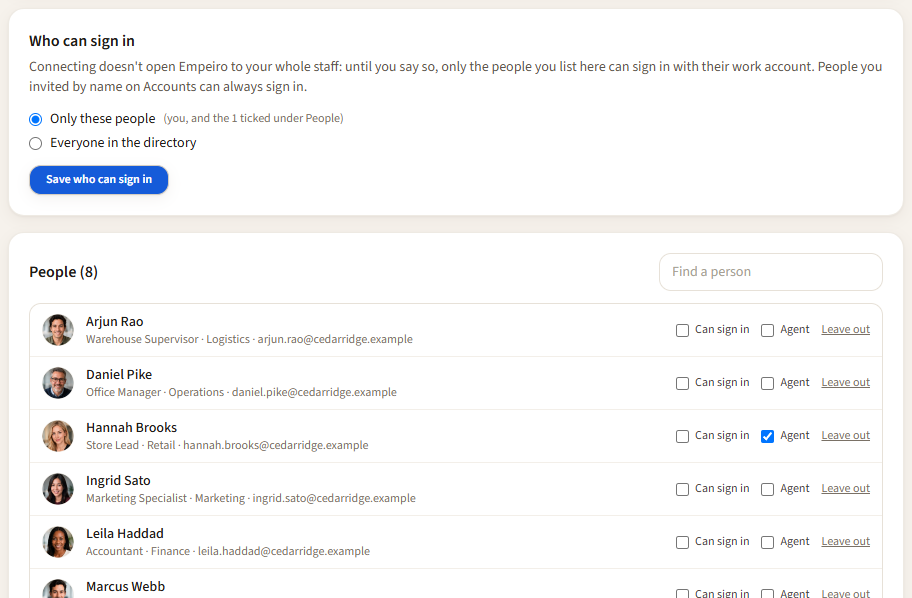
The pilot: start with a few people, then everyone.
Keeping it working
- The client secret expires on the date you chose. When it does, the light turns red with "Microsoft rejected Empeiro's app secret: it has expired." Make a new secret in Certificates & secrets, click Change details in Empeiro, paste the new Value (leave the IDs as they are) and Save and test.
- Test checks the connection at any time without changing anything.
- Disconnect (at the bottom of the people list) forgets the connection and the people it synced. People you invited stay, and every ticket stays. Nothing changes in Microsoft 365: the app registration stays there until you delete it.
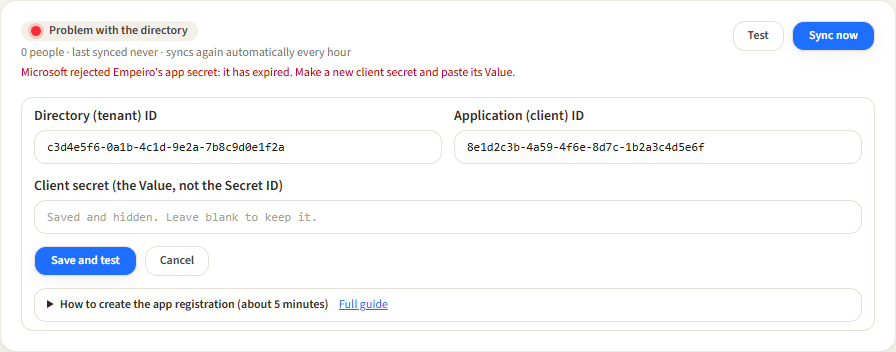
When something is wrong, the light says what.
Messages and what to do
| Message | Cause | What to do |
|---|---|---|
| This should look like 00000000-0000-… | An ID was pasted incompletely or with extra text. | Copy the ID again from the app's Overview page. |
| Enter the client secret (the Value from Certificates & secrets) | The secret box was empty on a first save. | Paste the secret's Value. |
| Microsoft rejected Empeiro's app secret. It may have expired. | Wrong secret, or the Secret ID instead of the Value. | Make a new client secret and paste its Value. |
| Microsoft rejected Empeiro's app secret: it has expired. | The secret's expiry date has passed. | Make a new client secret, Change details, paste its Value. |
| Empeiro's app isn't known in this organization. Check the Application (client) ID, and that an administrator has granted consent. | The client ID is wrong, or the registration is in a different tenant. | Check the Application (client) ID and the Directory (tenant) ID come from the same app's Overview page. |
| Microsoft doesn't recognize this organization (tenant). Check the Directory (tenant) ID. | The tenant ID is wrong. | Copy the Directory (tenant) ID from the Overview page. |
| Empeiro isn't allowed to read the directory. An administrator needs to grant consent. | Permissions were added but Grant admin consent was not clicked, or Delegated permissions were chosen instead of Application. | On API permissions, check the type says Application and click Grant admin consent. |
| Security groups couldn't be read (the GroupMember.Read.All permission isn't granted)… | Only User.Read.All was granted. People and photos still sync. | Add GroupMember.Read.All, grant consent, Sync now. Only matters if agents follow a security group. |
| Group membership couldn't be read for N people and was left as it was. | Microsoft throttled or had a passing error. | Nothing; the next sync retries. Known groups were kept. |
| N photo(s) couldn't be read and were left as they were. | A passing error, or a mailbox on an on-premises server. | Nothing; the next sync retries. |
| A stored secret couldn't be read with this server's key (the server may have been restored or moved). Enter the client secret again. | The server's encryption key changed, usually after a restore onto a new server. | Click Change details, paste the client secret's Value again, Save and test. |
| This server can't store a client secret… | A fault on Empeiro's side. | Contact support; nothing on your side needs changing. |
| The directory couldn't be reached: … | A network problem between the server and Microsoft. | Try Test again in a few minutes. |
| That Microsoft 365 tenant is already connected to another organization on Empeiro. | One tenant connects to one organization. | Contact support if this tenant should move. |