Adding an organization
This page is for Empeiro's owner. Empeiro is invite only: nobody signs up on their own. Each organization is added on the management account's Organizations page, together with its first administrator, who then runs it.
Before you start
- You need the organization's name, and the first and last name and work email of the person who will administer it.
- One email address is one Empeiro account. If the address is already used anywhere on Empeiro, choose another one.
- When Empeiro's own email is connected (Platform → Empeiro's own email), the invite is emailed for you. Until then you copy the link and send it yourself.
Step 1: add the organization
- Sign in to the management account and open Organizations.
- Click Add an organization.
- Fill in:
- Organization name, as its people know it.
- Administrator's first name, last name and email.
- The Role is Admin, and an agent: they can invite people, make others agents or administrators, and connect Microsoft 365.
- Click Add and make an invite link.
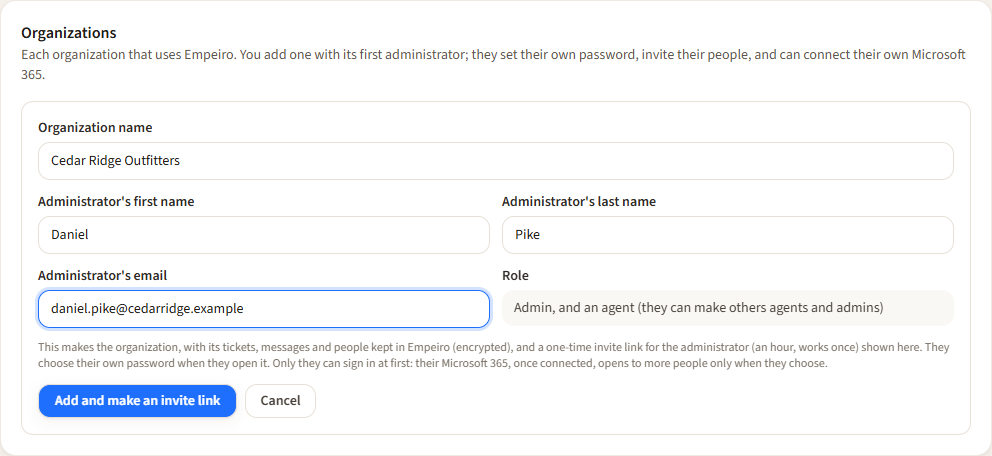
Adding an organization: the form sits at the top of Organizations.
Empeiro makes three things at once: the organization, with its help desk kept in Empeiro (tickets, messages, rules, how-tos and people, encrypted); the administrator's account; and a one-time invite link for them.
Step 2: send the invite link
The link is shown once, with Copy. It works once, for an hour. The line under it says whether it was emailed; if it says Not emailed, copy it and send it to the administrator yourself (a text, a chat, an email from your own mailbox).
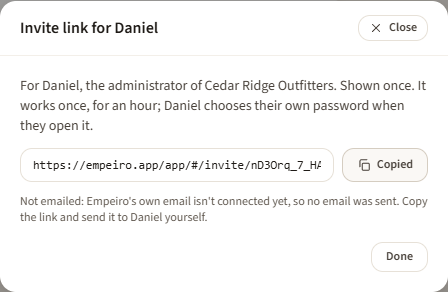
The invite link is shown once. Done closes it; Esc does too.
If the hour passes before they open it, open the organization's card and click New invite link beside their name. The old link stops working the moment a new one is made.
Step 3: the administrator sets their own password
When the administrator opens the link, Empeiro greets them by name and shows their email. They choose their own password (at least 12 characters; the most common passwords are refused). Nobody else ever sees or types it, you included. The link then signs them in once and they land in their organization's help desk, as an administrator and an agent. They can add a passkey on Your account afterwards.
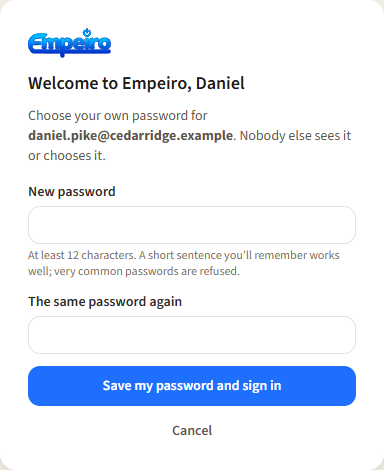
What the administrator sees when they open their link.
The organization's card
Each organization has a card on Organizations:
- People: how many people it has, and how many are agents.
- Tickets: how many tickets it holds.
- Last activity: the last thing anyone did in it.
- Who can sign in: "only listed people" until its administrator opens it to everyone in its directory. People invited by name can always sign in.
- Microsoft 365: not connected, connected (with its directory's name, how many people were synced and when), or a problem (with what Microsoft said).
- Its administrators, with whether they have signed in yet, and New invite link for anyone who hasn't.
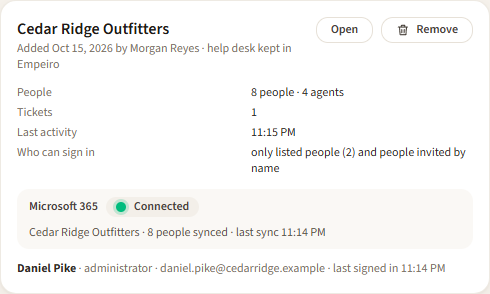
Each organization's status at a glance.
Open shows what the organization holds in Empeiro and its recent activity. It never shows tickets or messages: those belong to the organization.
Removing an organization
Remove on the card opens a confirmation that lists exactly what is deleted, counted at that moment: its tickets and messages, rules and how-tos, people and accounts, knowledge base articles, assets, attachments, assistants with their AI connections and keys, its settings and its activity. It also says what happens on the Microsoft 365 side: nothing changes there; Empeiro forgets the connection and the people it synced.
Type the organization's name and click Remove. Everyone in it is signed out at once. The encrypted backups made before then still hold it for up to 14 days; after that it is gone for good.
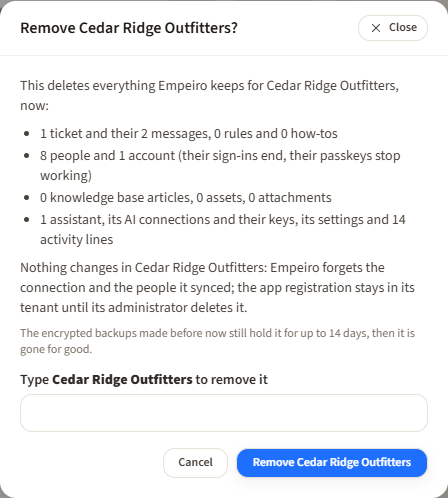
Remove says what goes before anything does.
Messages and what to do
| Message | Meaning | What to do |
|---|---|---|
| Someone on Empeiro already uses that address. One address, one account. | The administrator's email is already an account here. | Use another address for them, or remove the old account first. |
| There is already an organization called … | An organization with that name exists. | Use a name that tells them apart. |
| Not emailed: Empeiro's own email isn't connected yet… | No platform email is connected. | Copy the link and send it yourself, or connect Platform → Empeiro's own email. |
| … has already signed in. | You asked for a new invite for someone who already set their password. | They use Forgot your password? on the sign-in page, or their organization's administrator makes them a new-password link. |
| Type the organization's name, …, to remove it. | The typed name didn't match. | Type it exactly as shown. |